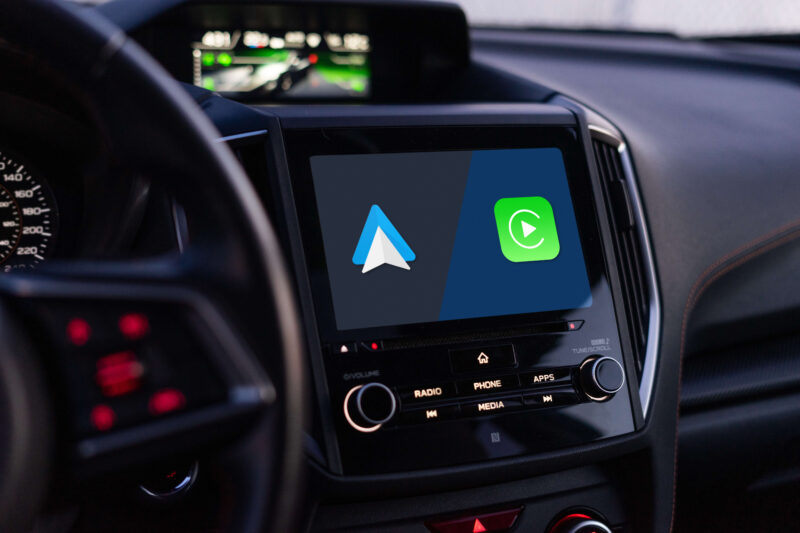
Undoubtedly, Android Auto is a feature that ranks super high on the list of must-haves for modern drivers. This convenient infotainment tool has transformed the manner in which smartphones interact with car systems, offering seamless access to navigation, phone calls, messages, and media via a safety-forward interface.
Use eTags© to Quickly Complete Your DMV Service. Renewals, Title Transfers and More, All Online!
Of course, before you can take advantage of Android Auto you’ve got to know how to set it up. And if you’re scratching your head and getting lost in the user manual, here at eTags, we’re here to help! Below you’ll find a handy to guide to walk you through setting up Android Auto, and get your phone connected to your car, making for safer, smarter driving. Ready? Here goes:
How to Set Up Android Auto
Before plunging head first into the setup, please make sure that your phone and car meet the required specifications. You’ll need an Android phone that has a version of 9.0 or higher, a car or infotainment system that is compatible with Android Auto, and either a USB cable for wired connection or Bluetooth and Wi-Fi capabilities for a wireless connection. It’s also a good idea to make sure you’ve got a good, reliable data plan on your phone to ensure that your real-time navigation runs smoothly.
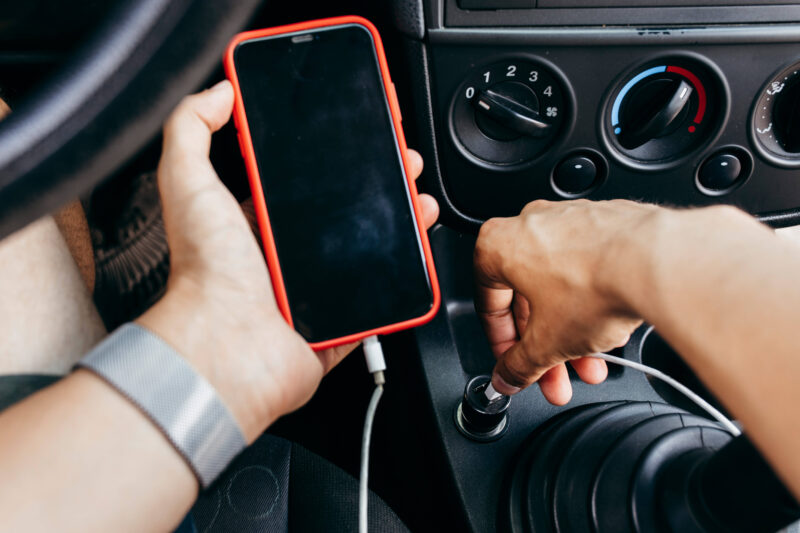
Once you’ve confirmed that your devices are compatible and up to date, you can choose to connect your phone to your vehicle either wirelessly or with a cable:
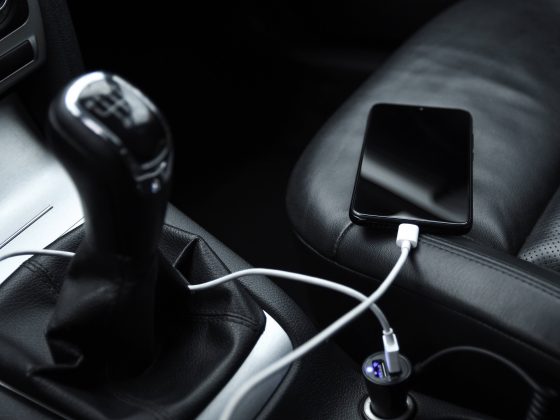
1. Wired Connection: Using the right cable, plug your phone into your car’s USB port. You will see some on-screen prompts pop up, asking you to grant necessary permissions, such as access to contacts and messages – follow these prompts and allow your car access to your smartphone.
2. Wireless Connection: First, switch on both Bluetooth and Wi-Fi on your phone, then pair your phone with your car’s system; Android Auto should initiate automatically.
In order to maintain a smooth connection and performance each time you get into your vehicle, keep your phone setting to allow permissions for contacts, messages, and location services to be shared with your car.
How to Address Connection Issues
If you run into problems pairing your smartphone with your Android Auto:
- It can be helpful to check for any software updates on your phone and car.
- Be sure you are using a high-quality USB cable, preferably the one that came with your smartphone.
- Try restarting both devices.
- If none of the above seem to help, go for a reinstall of the Android Auto app from the Google Play Store.
How to Navigate with Android Auto
Once you’re all set up, you can tap into a range of features that Android Auto offers to enhance your driving experience:
1. Smart Navigation:
- Real-Time Traffic: Get access live traffic information and avoid delays using Google Maps or Waze.
- Voice-Guided Directions: Tap into Google Assistant for hands-free navigation by saying, “Hey Google, take me to [destination].”
- Alternative Routes: Opt to get suggestions for faster routes when needed.
2. Customization:
- Preferred Apps: Choose your default map, such as Google Maps, Waze, or others.
- Notification Settings: Minimize distractions by muting unnecessary alerts.
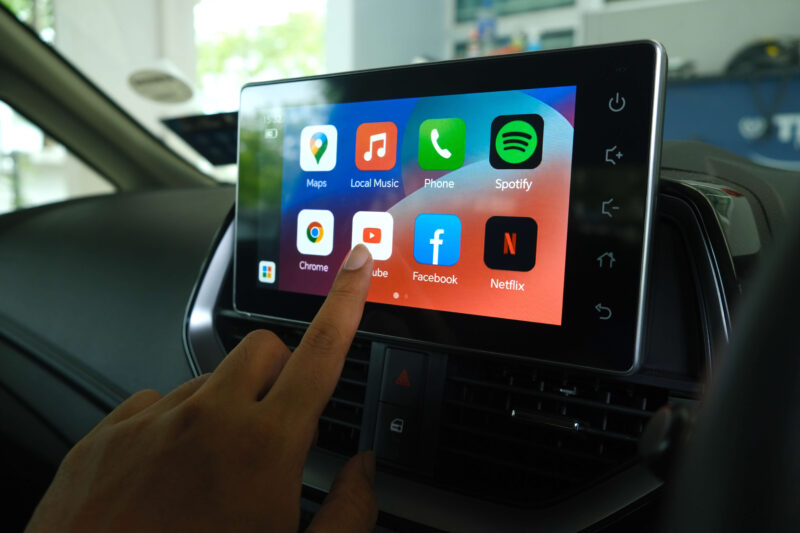
- App Shortcuts: Get quick access to the apps you use frequently in the car, like Spotify.
3. Voice Control for Safety:
- You can give commands such as “Put on my driving playlist,” “Send a message to Alex,” or “What’s the weather ahead?” rather than having to manually attend to these tasks.
How to Maximize Android Auto Efficiency
To keep Android Auto at prime, it’s a good idea to consider the following:
- Regular Updates: Stay current with Android Auto and other apps, updating them for compatibility and performance.
- Monitor Data Usage: It might be useful to download maps for offline access, saving on data during long trips.
- Proper Disconnect: Remember to close down Android Auto before unplugging your phone to avoid system errors.
- Check Compatibility: Confirm with the manufacturer that your vehicle supports all Android Auto features.
- Professional Help: For the issues that you can’t seem to solve on your own, look into getting some assistance from your car dealership or service center.
And there you have it: the quick guide to set-up and maintenance of Android Auto. From your family at eTags, happy, safe driving!